
The dashboard
The dashboard works on a phone as well as a computer, so you or a moderator can keep an eye on the stream and fix things from anywhere. On a phone, the tabs at the bottom are Live, History and Settings.
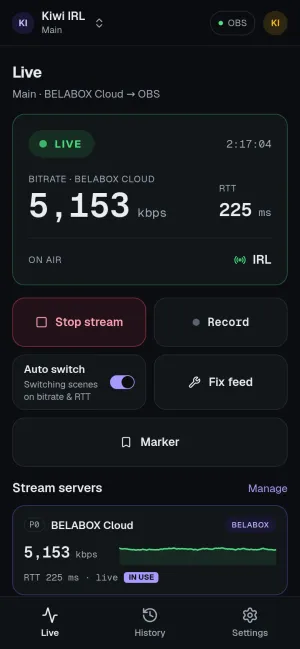
What’s happening now, updated every second.
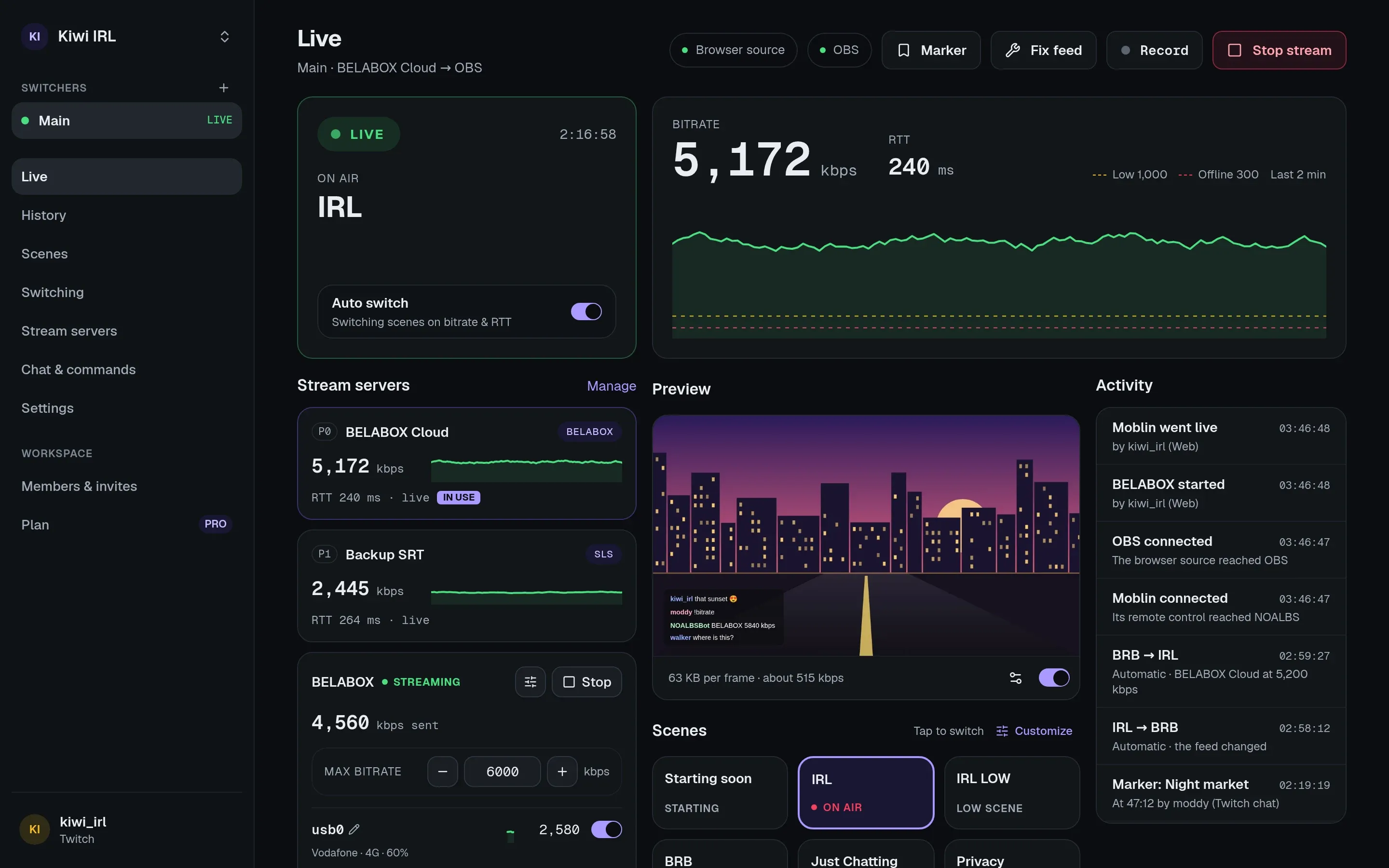
- Stream servers: each server’s bitrate and RTT with a 2-minute chart, and which state (LIVE, LOW, BRB) it’s in. The one in use is marked.
- Start stream / stop, Record, Fix feed and Marker (see below).
- Auto switch: turn automatic switching off and on, for example while you do something by hand.
- Preview: a still of what’s on air, refreshed at the rate you choose. It’s on by default on computers and off on phones. Every frame costs a bit of your upload, so keep the rate low while streaming over mobile data.
- Scenes: tap one to switch to it. Customize hides scenes you never use (just for you; new OBS scenes show up on their own).
- Sources: show or hide the sources of the scene on air, including those in nested scenes and groups. Customize hides them here too.
- Audio: OBS’s mixer with mute and volume. Levels shows live meters; it’s off until you turn it on, since the levels also cost your upload.
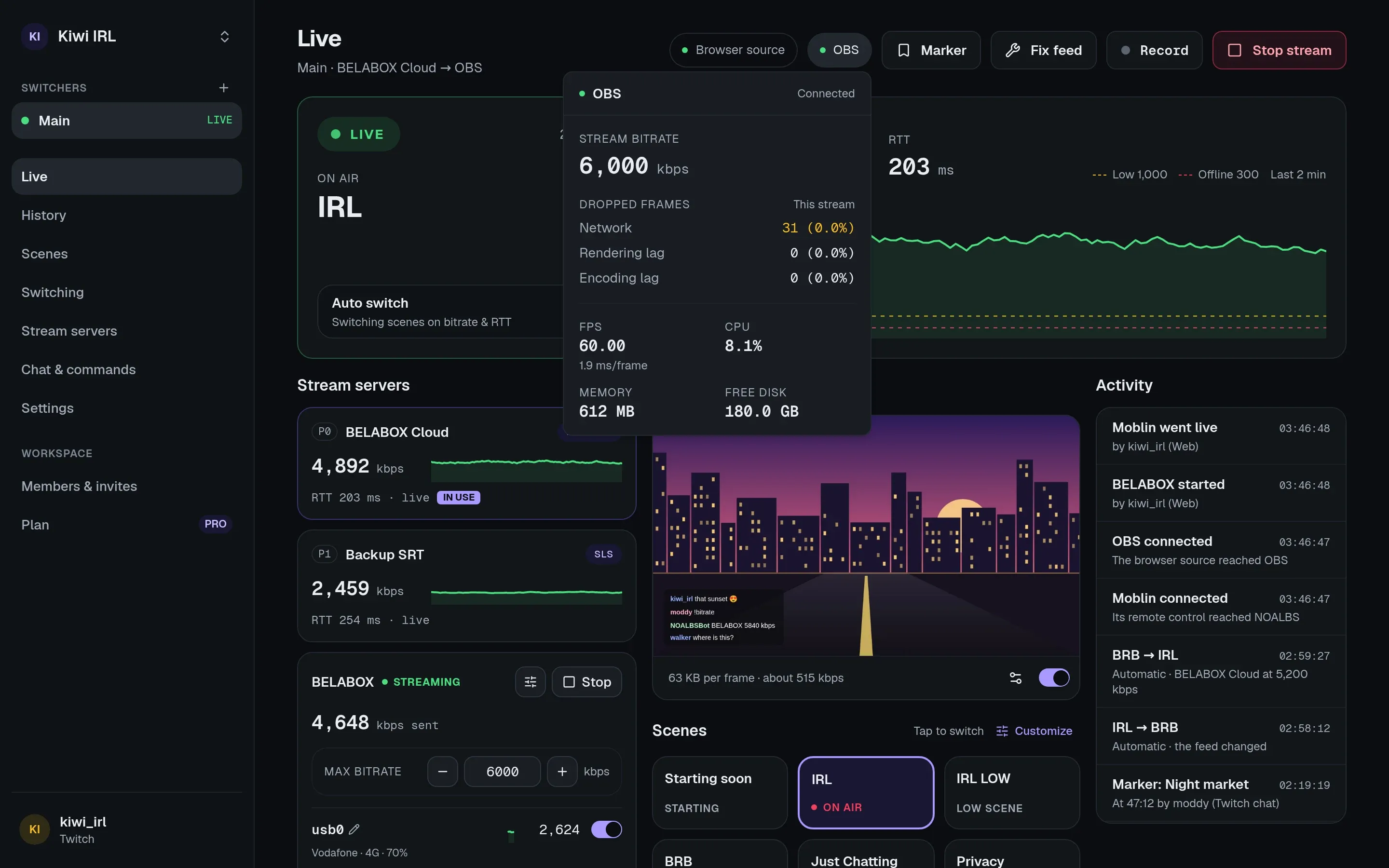
- OBS (the chip at the top): OBS’s own stats: dropped frames by cause, FPS, CPU, memory, free disk and the bitrate it sends out.
- Activity: every switch, start, stop, setting change and command, and who did it.
- BELABOX and Moblin cards, if you connected them.
OBS’s stats
Section titled “OBS’s stats”The OBS chip at the top opens OBS’s own numbers, read every 2 seconds while it’s open: the
bitrate OBS sends out, dropped frames by cause (network, rendering lag, encoding lag) for this
stream, FPS, CPU, memory and free disk. Chat: !serverinfo.
Fix feed
Section titled “Fix feed”Reconnects the network media sources (SRT, RTMP, RIST, …) playing on the scene on air,
including those in nested scenes and groups. Use it when OBS shows a frozen picture although the
stream server has the feed. Chat: !fix.
Markers
Section titled “Markers”Marker flags this moment on the running stream, with an optional note, for example to
find a clip later. Markers are listed on the stream’s History page (Copy or Download as
H:MM:SS note lines). Chat: !marker [note].
History
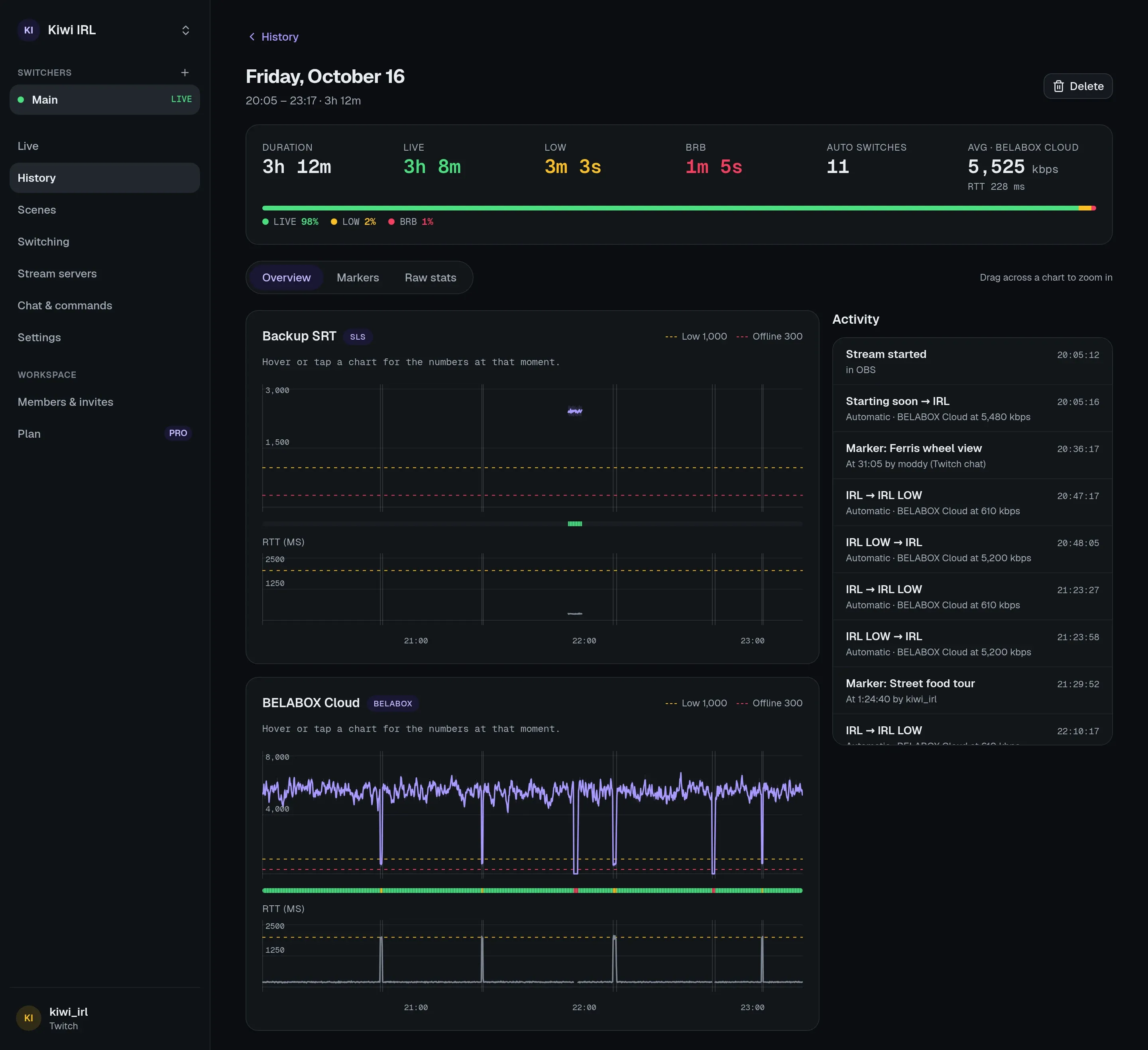
Section titled “History”Every stream from OBS start to stop, grouped by day, kept for as long as your plan’s history retention. A stream’s page shows:
- how long it spent in LIVE, LOW and BRB,
- a chart per stream server: average bitrate, the min–max band, your triggers, RTT and where it switched,
- the activity during the stream, and its markers.
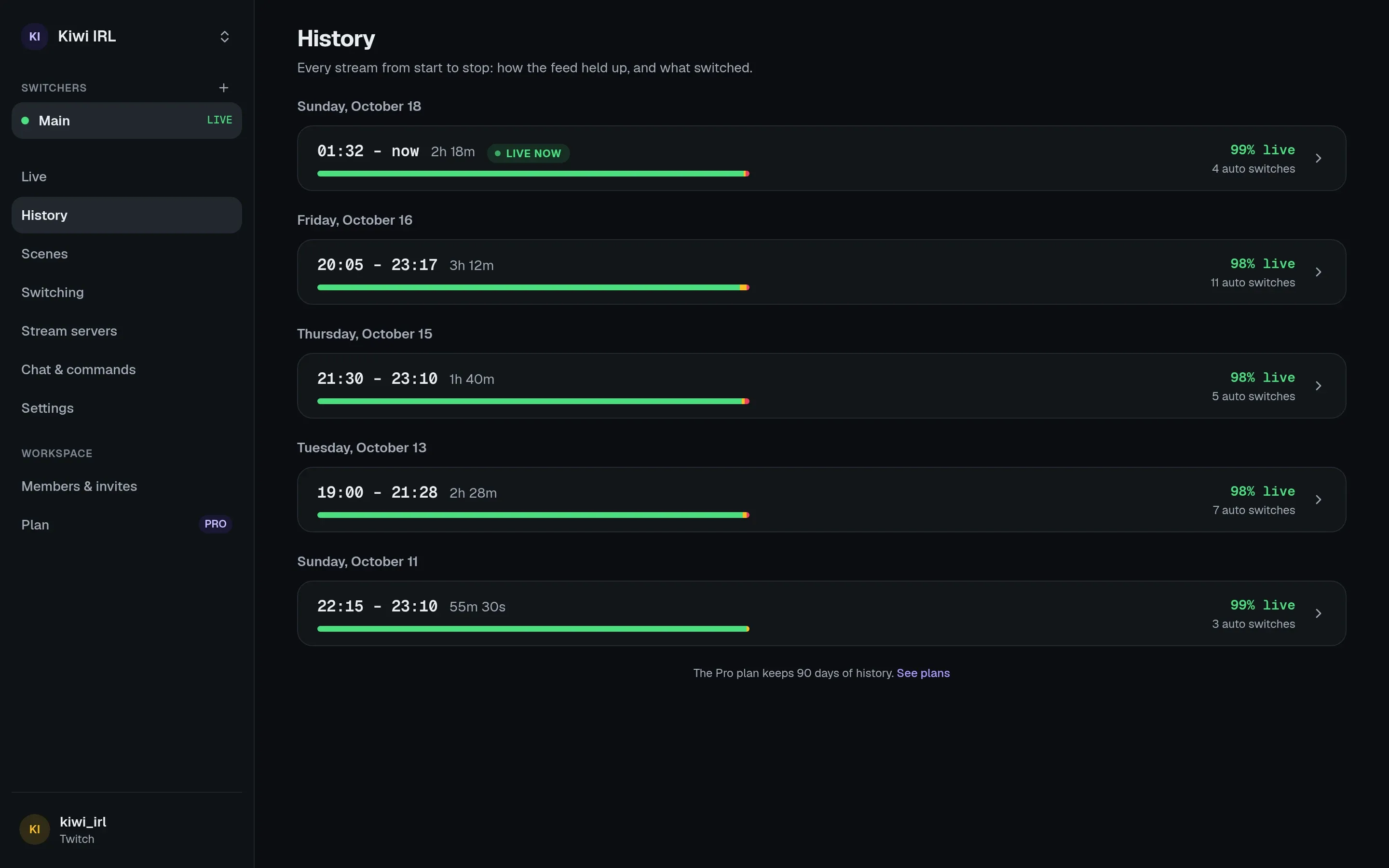
Drag across a chart to zoom in. Raw stats (for people who manage the switcher) charts any number your stream server reported, which helps when something looks odd.
Safe to show on stream
Section titled “Safe to show on stream”Streamers often have the dashboard on screen. Anything that holds a key, like stats URLs or the browser-source link, is hidden until you reveal it, and Copy copies it without showing it.